Home > Working with Planning Projects > Building an Application > Building Application Models > Building A Cube Model > Basic Setup
Basic Setup
Last Updated 5/28/2012 4:05 PM
To access the Model Building Wizard, select [project name]>Modelling>Model Building (note that FY Plan is the folder created for our project, your project name may be different).
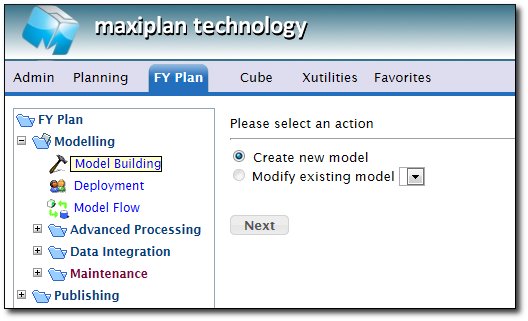
The wizard will prompt whether you wish to create a new model or edit an existing one. We are creating a new model, so select the 'Create New Model' option. Then click  . .
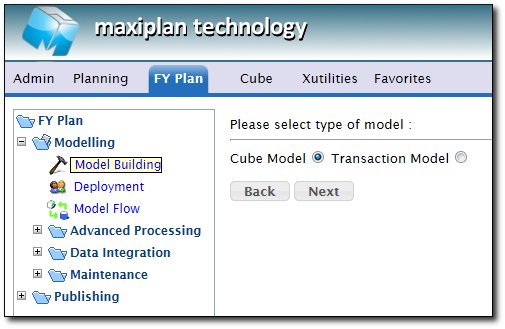
When prompted to select the type of model, we select 'Cube Model' (which is the default). Then select .
The wizard will open up the Cube Model definition applet, and we can now commence the process of building our expenses model. The first tab is where we enter the name of the model and any description we wish to add. Our sample model is called Expenses.
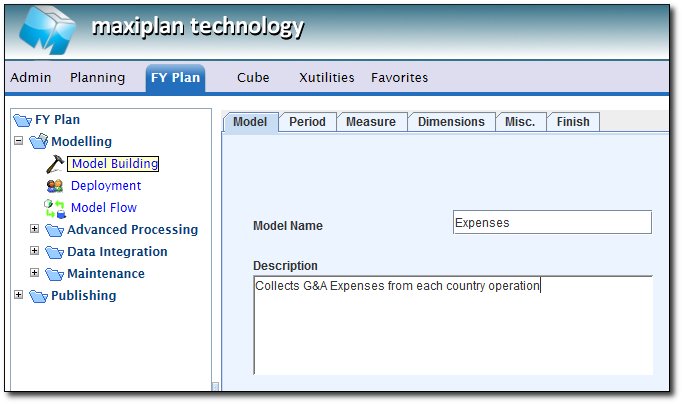
Having given the model a name and a description we now customise the model using by specifiying the elements of the model by selecting the tabs at the top of the model building applet. The sections below describe these elements. In general for any model we will need to define period sets, define measures, define dimensions, specify any miscellaneous settings and finally finish the model.
Building a Cube Model
| 


 Page URL: