Home > Working with Planning Projects > Building an Application > Building Application Models > Building A Cube Model > Measure Settings > Measure Formatting
Measure Formatting
Last Updated 2/21/2012 11:38 PM
The Measure Format attribute enables certain formatting options for the measures defined in the model.
To set the layout attributes for a particular measure, first select the desired measure and then select the  icon to display the layout properties in a pop-up menu. icon to display the layout properties in a pop-up menu.
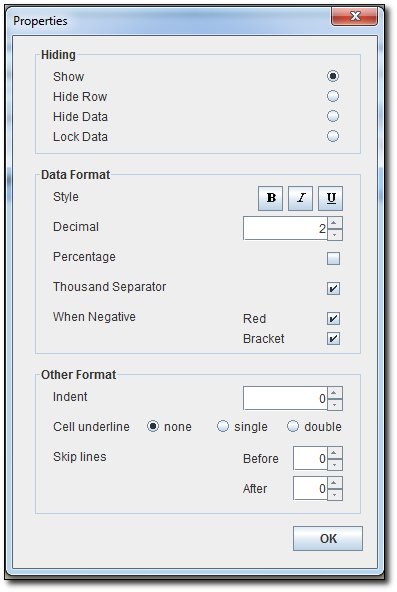
Hiding Options :
- Show : As Default, it will show both the measure name & the data, and enable input data for leaves node.
- Hide Row : It will hide both the measure name & the data , example usage is for hidden measure used for calculation/flag.
- Hide Data : It will hide the data, but still show the measure name, example usage is for the Group heading of measures.
- Lock Data : It will show both the measure name & the data, but disable input data for leaves node.
Data Format :
- Style : Set the data of the measure to be in Bold, Italic, or Underline
- Decimal : Set the decimal digit of the data
- Percentage : Set whether the measure is a percentage measure (will put %)
- Thousand Separator : Whether to put the thousand separator or not
- When Negative : Set the format for Negative value data (Red Colour and with/without Bracket)
Other Format :
- Indent : Set the indentation number of the measure displayed on the grid
- Cell underline : Set the underline type for the data (none, Single, Double)
- Skip Lines : Set number of line(s) to skip before or after the measure
You can define different Measure Formatting for Leaves Node and Consolidation Node, if you select "User Specified" on the Consolidation Logic.
See also
| 


 Page URL: