Home > Working with Planning Projects > Building an Application > Building Application Models > Building A Transaction Model > Defining Dimension Lists
Defining Dimension Lists
Last Updated 2/28/2012 1:17 AM
Next we select the Dimensions tab to define any dimensions we wish to use in our Transaction Model.
A Transaction Model can utilise a dimension list in much the same way that a Cube Model does, the only major difference being that Transaction Models do not consolidate, and a dimension member is simply a special type of field in the Transaction Model that appears as a drop down list.
Any consolidation required will be done when we link the Transaction Model to a Cube Model.
In the Travel Costs model shown, we want to separate each submission by country, so we use the Country dimension similar to that defined for creating the Cube Model.
If we right click the mouse on the left panel containing the dimensions for the model, a pop-up menu will be displayed and we can select the Add option.
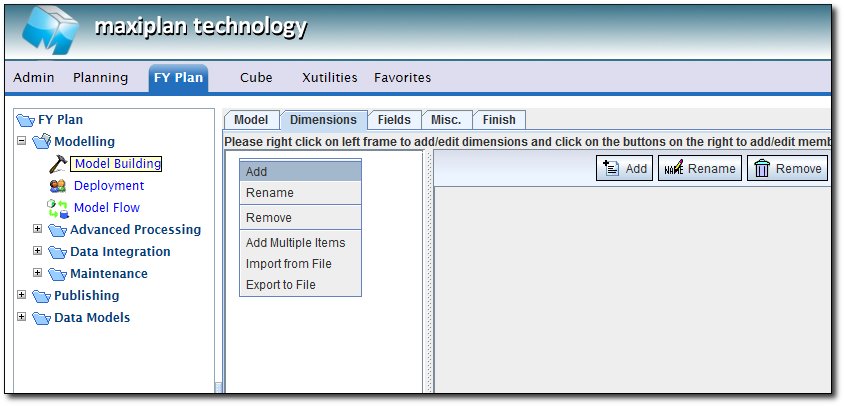
TIP: If you need to create more than one dimension at a time, select the 'Add Multiple Items' option which will enable you to add several dimensions at the same time.
When we click on the Add option, a pop-up will appear enabling us to enter the dimension name. In our case, we will enter the dimension name Country.
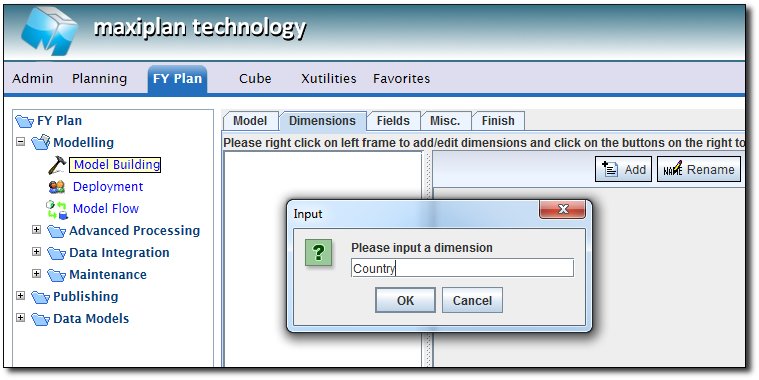
Next we need to specify the members of our Country dimension.
To do this, we select the dimension and click on the  button at the top right of the member lift frame. button at the top right of the member lift frame.
A pop-up will appear into which we can enter the dimension member names. For our example, we will add the following members: (codebox)
- London
- Paris
- Singapore
- Thailand
Note that we do not need to include Asia, Europe and World in our list because no consolidation is involved in a Transaction Model.
TIP: If you need to keep a dimension list synchronised between several models, you can include the consolidated nodes in the dimension list for a Transaction Model and the consolidated members will simply be ignored.
For example, we could have exported the dimension list from our 'Expenses' Cube Model, and instead of typing the members in above, we simply import the dimension for our Transaction Model from the exported comma delimited file from 'Expenses'.
See also
See also
| 


 Page URL: