Home > Working with Planning Projects > Project Management > Currencies
Currencies
Last Updated 5/28/2012 12:25 PM
A common requirement for many organisations is the need to collect and consolidate data from many different country locations, a task which often requires tedious and often error-prone currency conversions of data entered in local currency.
When using spreadsheets, this requires the model developer to incorporate the currency conversion as calculations in the spreadsheet, thus relying on the accuracy of the spreadsheet owner's calculations to ensure consistency. This problem can be further exasperated by the existence of several different spreadsheets using different conversion rates leading to inaccuracies in the data being reviewed.
Cascade has been designed with currency conversions provided as an integral part of the system, allowing model developers free to forget about the problems of building currency into their models. All that is required is the maintenance of a currency table for all the currencies that will be used within your planning environment. Currencies are common across all projects and you may define any number of exchange rate sets, which may be used for different requirements, different periodicities and different scenarios.
GLOBAL AND LOCAL CURRENCIES
The currencies and currency rate tables are normally defined and maintained by a Planning Administrator on a system-wide basis to ensure consistency across planning applications within the organisation, however it is also possible to define currencies and rates that are local to the project. The instructions below relate to editing the global currency tables, but the same functions are available within a project folder to edit and maintain local currency tables.
ADDING AND DELETING CURRENCIES
When installed, a number of currencies are provided. You can add currencies to this list or delete currencies from the list. Typically currencies have a 3 character symbol associated with them, although you may use a longer description if you wish.
To add a currency, simply type the name of the new currency into the box at the top of the screen and click on  . .
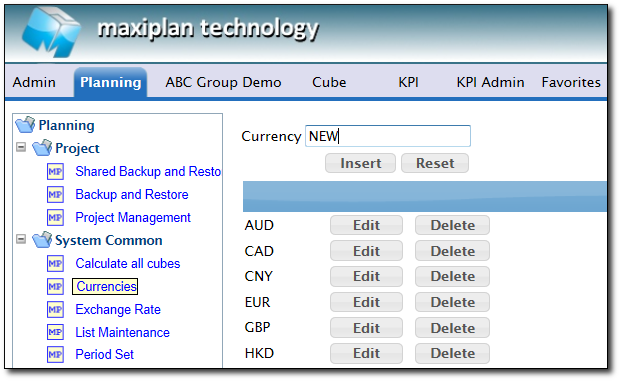
To delete a currency, simply click on the  button adjacent to the currency you wish to delete. button adjacent to the currency you wish to delete.
To rename a currency, click on the  button next to the currency you wish to change, and the currency symbol will appear in the edit box at the top of the screen. button next to the currency you wish to change, and the currency symbol will appear in the edit box at the top of the screen.
Change the currency symbol to the desired text and click on the  button to save the changes. button to save the changes.
EDITING EXCHANGE RATE TABLES
Cascade enables you to maintain as many exchange rate tables as required. Each exchange rate table is associated with a period set.
To add a new Rate Table, select Planning>System Common>Exchange Rate and then enter the name of the new Rate Table in the entry box at the top of the screen.
Now select the period set to be used for the new Rate Table, and finally click on the button to insert the new Rate Table.
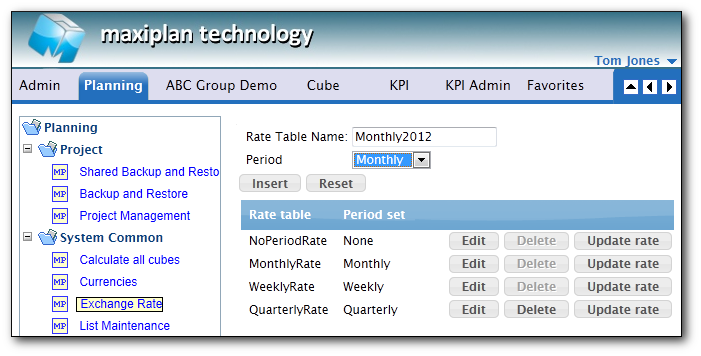
Once the Rate Table has been added, you can edit the rates by clicking on the  button adjacent to the Rate Table. A grid will appear displaying the rates set for the Rate Table (these will all be 0.0000 if it is a new table). button adjacent to the Rate Table. A grid will appear displaying the rates set for the Rate Table (these will all be 0.0000 if it is a new table).
To edit the rates, simply select the cells and enter the desired rates for each period and currency.
Remember to select one master currency which should be set to 1.0000 for all periods.
TIP: You can use the '#' symbol to replicate a value across all columns.
For example, if we enter #1.0000 into Jan in the table shown for USD, the value will be replicated for all columns.
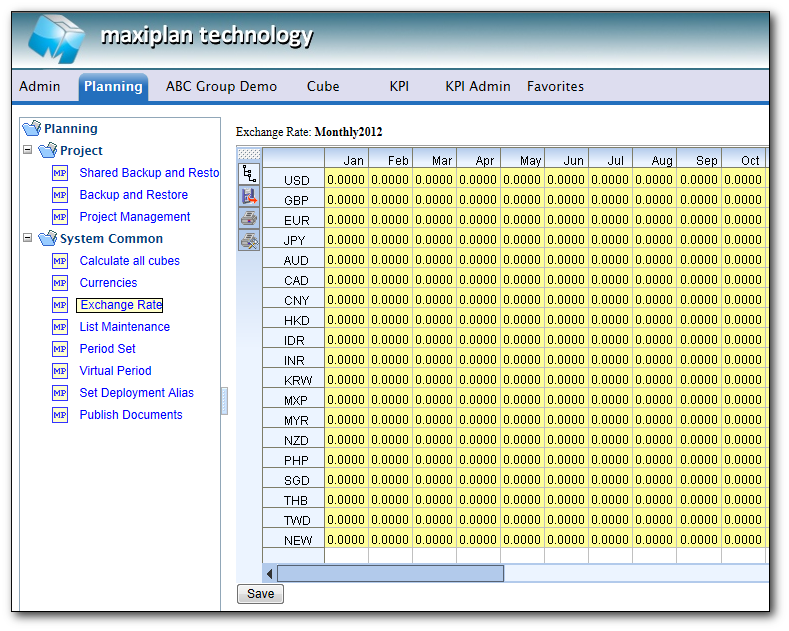
TIP: If you want to use the rates in an existing table as a basis for the rates in your new table the easiest way to do this is to use copy and paste. First select the update rates option for the table you want to copy from, then select all the cells in the grid and press CTRL C to copy the figures. Next select the update rates option for the table you have just created, select the first cell of the first row, and press CTRL V to paste the values into the grid.
See also
Creating and Maintaining Projects
Period Sets
Creating A Splash Screen
Allowing Other Users Access
Backup and Restore
Virtual Period Definition
Deployment Alias
Publish Documents
Project Status
| 


 Page URL: