Home > Working with Planning Projects > Building an Application > Advanced Project Functions > Maintenance > Model Maintenance
Model Maintenance
Last Updated 3/6/2012 7:33 PM
The Model Maintenance function provides a number of housekeeping functions including:
-
Change the order that the models are listed in the Input section
- Delete the model(s)
-
Calculate the model(s)
-
Clear submission comments from the model(s) (associated with workflow)
-
Zeroise all the data in the model(s)
-
Group Models into Model Folder
-
Rename a model
-
View a Model Detail Information
-
Recreate the cube
-
Export a model into Cube Reporter
To access the Model Maintenance functions, navigate to {Project Tab}>Modeling>Maintenance>Model Maintenance
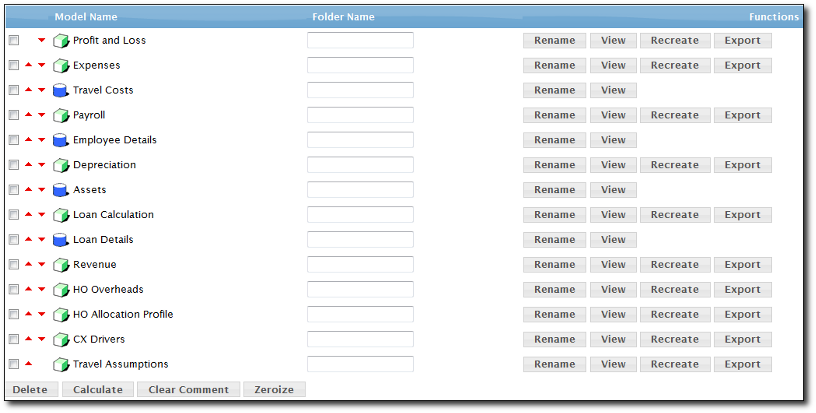
The Model Maintenance screen will be displayed. Each model is listed with a number of options as detailed below.
Changing the Display Order of Models
To change the order in which your models are displayed, use the icons to move a model up/down in the order list. icons to move a model up/down in the order list.
Deleting the Model(s)
To delete a model, tick the checkbox next to the model that you wish to delete and click on the Delete button located at the bottom of the list of models. A confirmation prompt will appear. If you click OK the model and all its data will be deleted.
Calculate the Model(s)
To calculate a cube, tick the checkbox next to the model and click on the Calculate Button located at the bottom of the list of models.
Clear Submission Comments
If a cube model has been deployed to users to submit data, when the submission process occurs, the user is prompted to enter a comment with the submission. Similarly if a Reviewer rejects a submission, a comment can be entered at the time of rejection. Cascade Planning keeps track of all comments for review.
To clear a model of all comments, tick the checkbox next to the model that you wish to clear comments for and click on the Clear Comment button located at the bottom of the list of models. A confirmation prompt will appear. If you click OK the comments for the selected model will be deleted.
Zeroize all the Data in the Model(s)
To zeroize the data in a cube model, tick the checkbox next to the model you wish to zeroize and click on the Zerorize button located at the bottom of the list of models. A confirmation prompt will appear. If you click OK all the data for the selected model will be zeroized. Zeroize will clear all of the data in the model, but will keep the valid combinations that existed in the model previously.
Model Folders
You can group models into folders by providing the folder name in the text input box next to the model name.
Renaming a Model
To rename a model, click on the Rename button next the model you wish to rename, and a popup panel will appear where you can edit or change the name. Click OK to save the changed model name.
View the Model Detail Info
To view the Detail information of a model, Click on the View button next the model you wish to view, and a popup window will appear where it will show the information of that particular model.
Recreate Cube
To recreate the cube, click on the Recreate button next to the model you wish to recreate. A confirmation prompt will appear, when you click OK, all the data and combinations in the model will be cleared.
Export Model
This will export the selected cube model into the cube reporter folder (if installed), this will create a snapshot of the cube model into the repository folder in the All Documents folder (only for Cube model)
See also
| 


 Page URL: