Home > Working with Planning Projects > Building an Application > Building Application Models > Building A Cube Model > Dimension Settings > Defining Dimension Lists
Defining Dimension Lists
Last Updated 2/22/2012 9:20 PM
We want to collect and consolidate our expense data by country, so our Expenses model requires one dimension which is the Countries dimension.
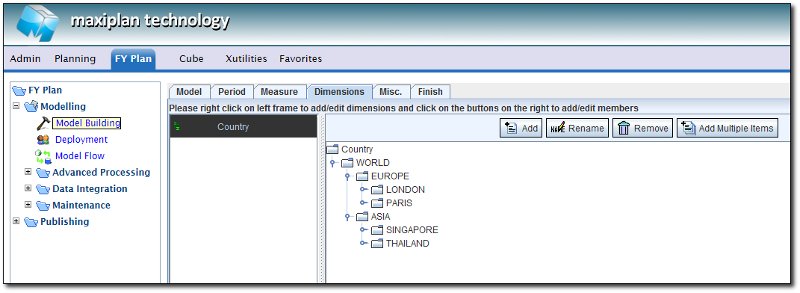
We need to select the Dimensions tab to display the model building component which will enable us to build the dimensions.
The left hand panel shows the dimensions we have defined, and the right hand panel shows the members and the hierarchy of the currently selected dimension. Since we have not yet created any dimensions or dimension lists, both frames should be empty.
If we right click the mouse on the left panel containing the dimensions for the model, a pop-up menu will be displayed and we can then select the  option. option.
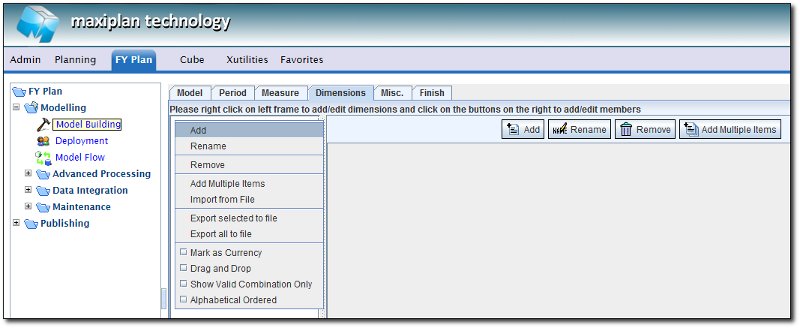
TIP: If you need to create more than one dimension at a time, select the Add Multiple Items option which will enable you to add several dimensions at the same time.
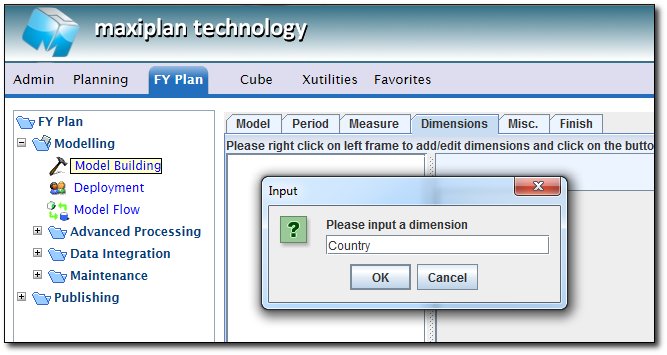
When we click on the option, a pop-up will appear enabling us to enter the dimension name. In our case, we will enter the dimension name Country.
Now we need to specify the members of our Country dimension.
To do this, we select the dimension and click the  button at the top right of the member list frame. button at the top right of the member list frame.
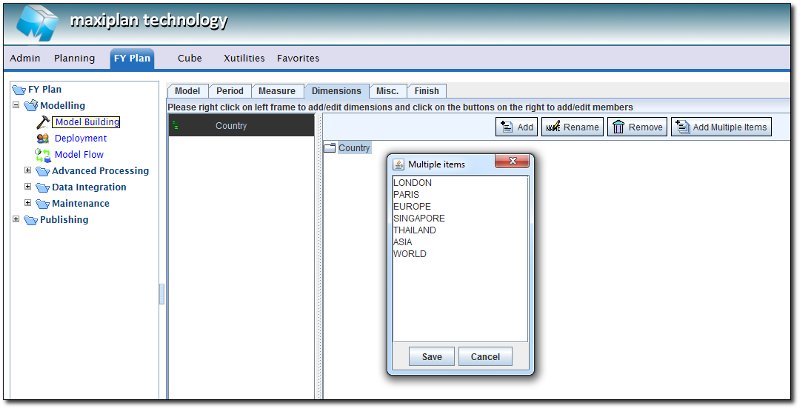
A pop-up will appear into which we can enter the dimension member names. For our example, we will add the following members.
LONDON
PARIS
EUROPE
SINGAPORE
THAILAND
ASIA
WORLD
|
Once we have entered the members into the pop-up, we just click the  button to save the members into the dimension list. button to save the members into the dimension list.
Next we need to organise our member list into a hierarchy.
We can do this by first selecting a member, for example, London, and then left click on the selected item, and whilst holding the mouse button down, we drag the item and drop it onto the item we want it to belong to, in this case Europe.
To select multiple items to drag and drop, use the CTRL left mouse combination. To select a range of items, select the first item in the range and then hold the SHIFT key down whilst selecting the last item in the range.
In our example, we want to have London and Paris consolidate into Europe, and Singapore and Thailand consolidate into Asia, and then Europe and Asia consolidate into World.
See also
See also
| 


 Page URL: