Home > Working with Planning Projects > Building an Application > Building Application Models > Building A Cube Model > Miscellaneous
Miscellaneous
Last Updated 5/28/2012 1:16 PM
The Miscellaneous tab is used to define the model layout and attributes related to the formatting of the model display and includes the following:
- changing the default dimensions used as row and columns (usually measure and period).
- allows you to exclude the Version dimension for this model (default is Version included).
- allows optional Measure comments to be included in the model (default is none).
- allows the model to be locked for data input (default is unlocked)
- allows the measures (when default rows are measures) to be displayed as a hierarchy tree (default is no hierarchy).
- allows the workflow to be hidden (default is workflow shown).
- allows the submit button to be hidden (default is submit button displayed)
- allows the default grid column & data width to be changed (default is auto)
- specify the alternative input form for the model (using an mxa script)
Select the tab labelled 'Misc.' to change these settings.
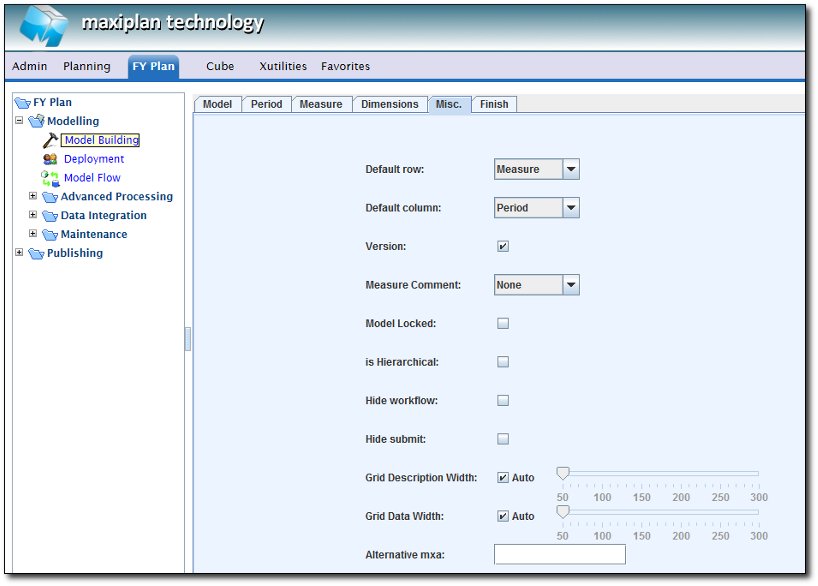
Changing the Layout
The default rows for a model is always the Measure dimension. You can change the default display for rows to another dimension in the model. Select the desired dimension to change this.
The default columns for a model will always be the Period dimension. You can change the default display for columns to another dimension in your model. Select the desired dimension to change this.
Excluding the Version Dimension
By default, the Versions dimension will be applied to a model unless you specify otherwise. If you un-check the Versions option, this model will not have a Versions dimension.
Enabling Measure Comments
If you wish to permit users to be able to input an optional comment with each Measure, you can enable Measure comments. You can allow comments to be entered before the data columns or after the data columns. Select either 'Before' or 'After' from the drop down list to enable this.
Model Locked
To prevent users being able to input data to the model, we can set the model to be locked.This will ensure that data can only be loaded into the model via a link, a cross reference or a script.
Hierarchical Display of Measure
If Measures are used as rows they can be displayed in hierarchical mode. That is, for calculations using the '+' sign, the child nodes will initially not be visible but can be accessed by expanding the parent node. This feature is useful if your measures consist of accounts and sub-accounts, as initially only the accounts will be displayed, but this can be expanded to show the sub accounts.
Hide Workflow
To hide the model's workflow from the workflow section, set the option to hide it.
Hide Submit button
To hide the Submit button from the Input Grid, we can set the option to hide it. This is useful if we don't want users to be able to submit and lock their input using the spreadsheet grid, but we do want them to be able to save data.
Grid Description Width
We can define the width for the descriptions displayed in the spreadsheet grid. It will default to Auto (based on the description longest name in the display), or a specific width (50-300 pixels).
Grid Data Width
We can define the width for thedata columns displayed in the spreadsheet grid. It candefault to Auto (based on the longest column description or on the max number of digits required to display values), or it can be a specific width (50-300 pixels)
Alternative Input Grid
The Alternate Input Grid allows you to specify your own custom input form which will be used for this model instead of the spreadsheet grid. Once the alternative input form is specified, users won't be able to see the default spreadsheet grid when they open the model.
See also
Basic Setup
Selecting a Period Set
Measure Settings
Dimension Settings
Finishing The Model
Advanced Features
| 


 Page URL: